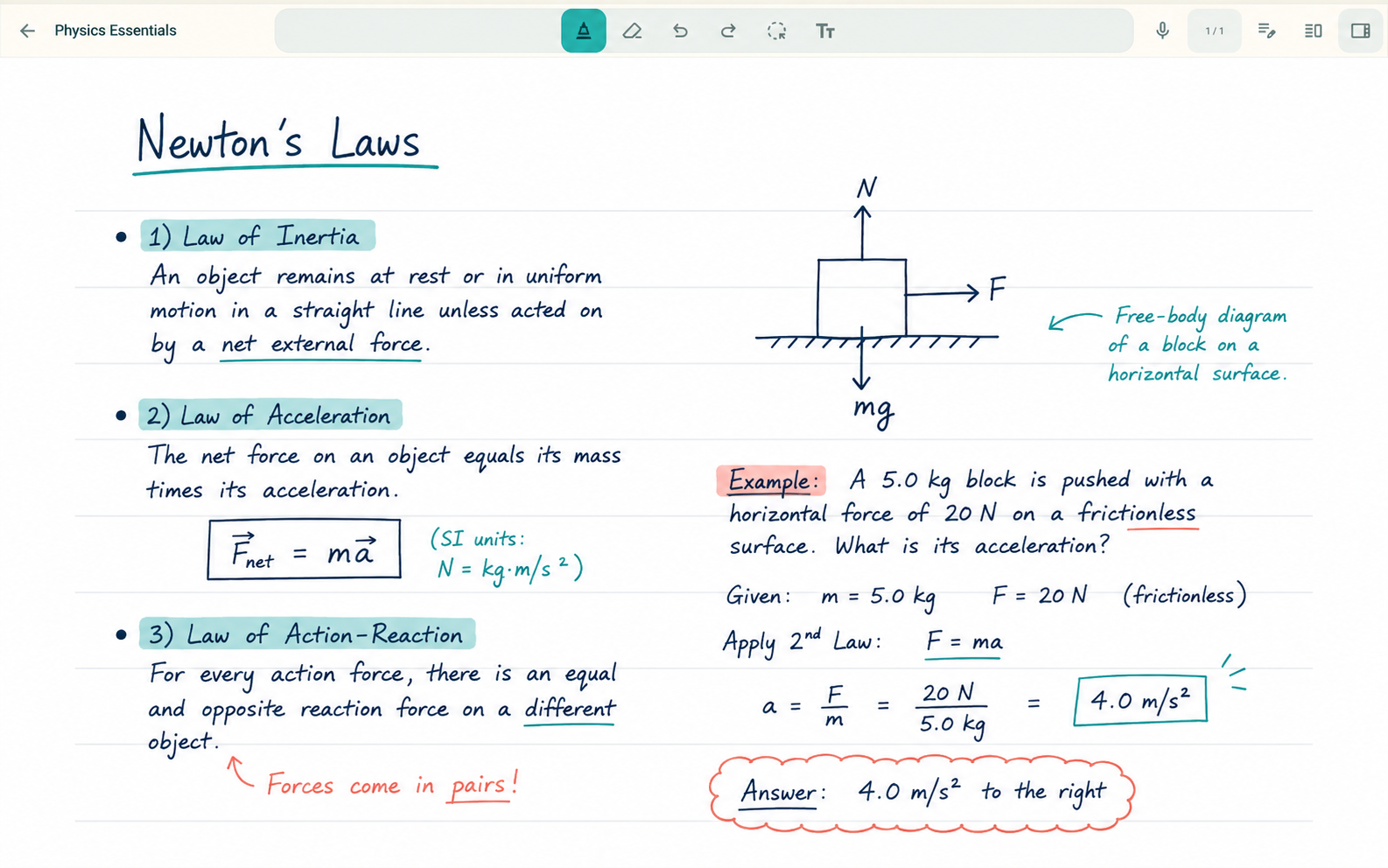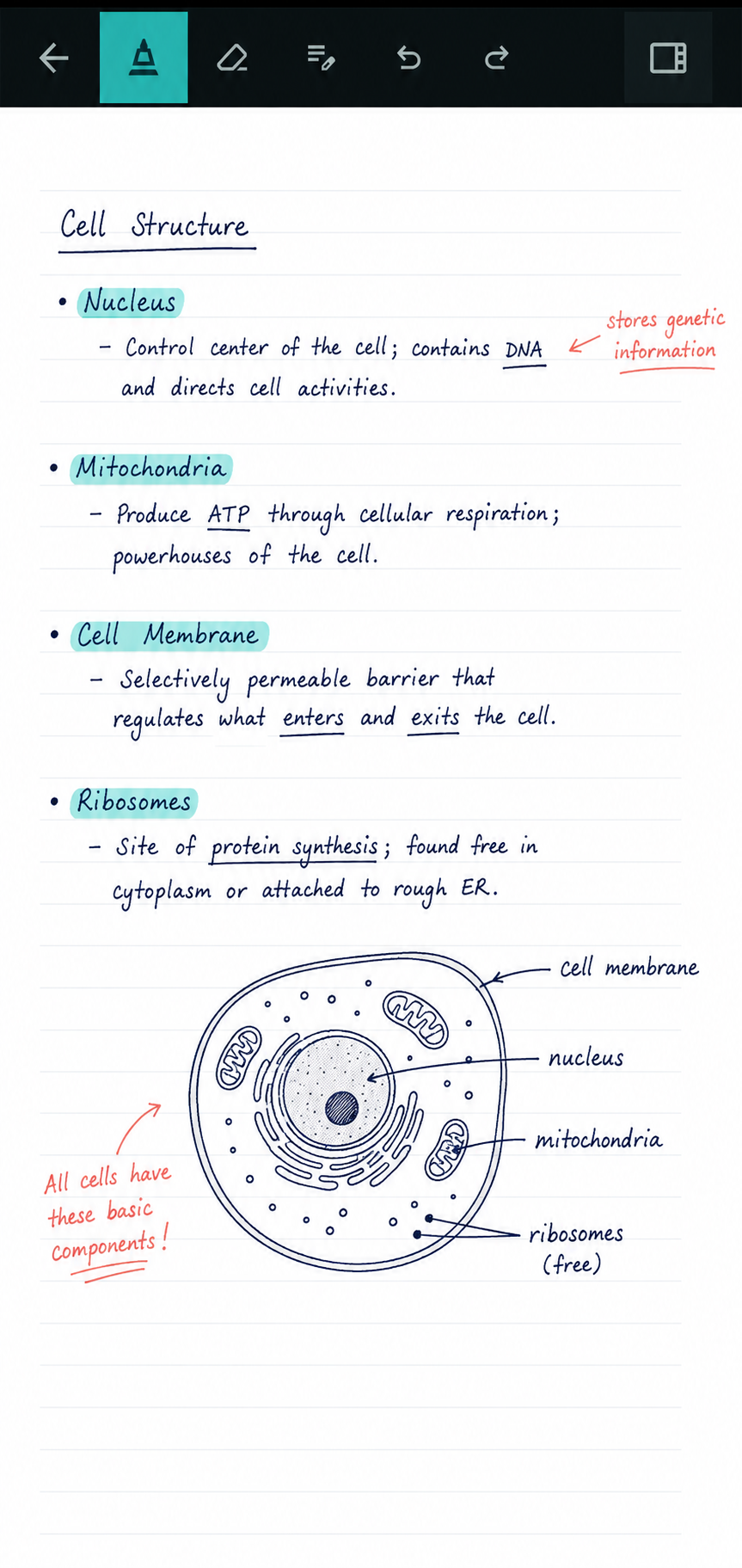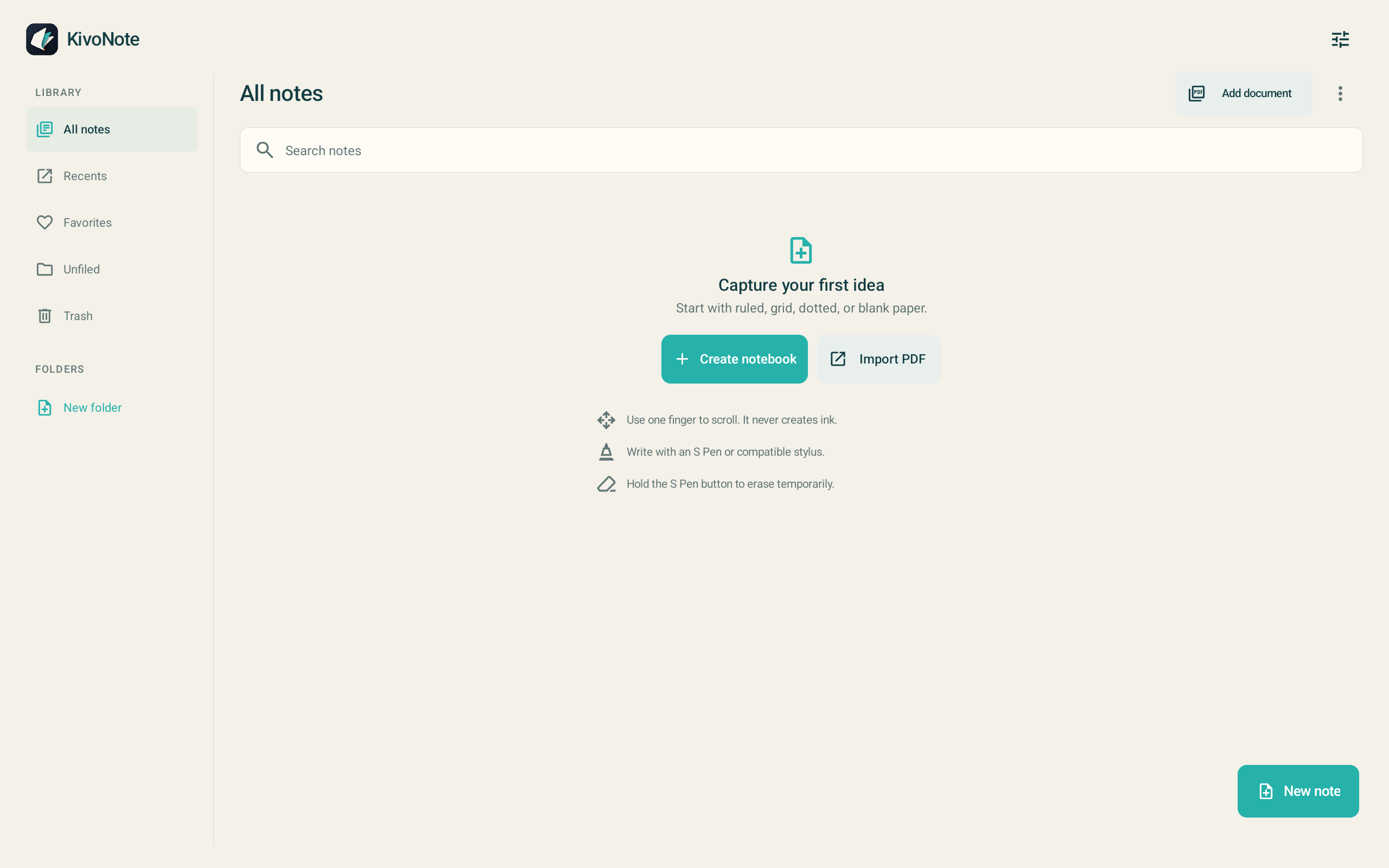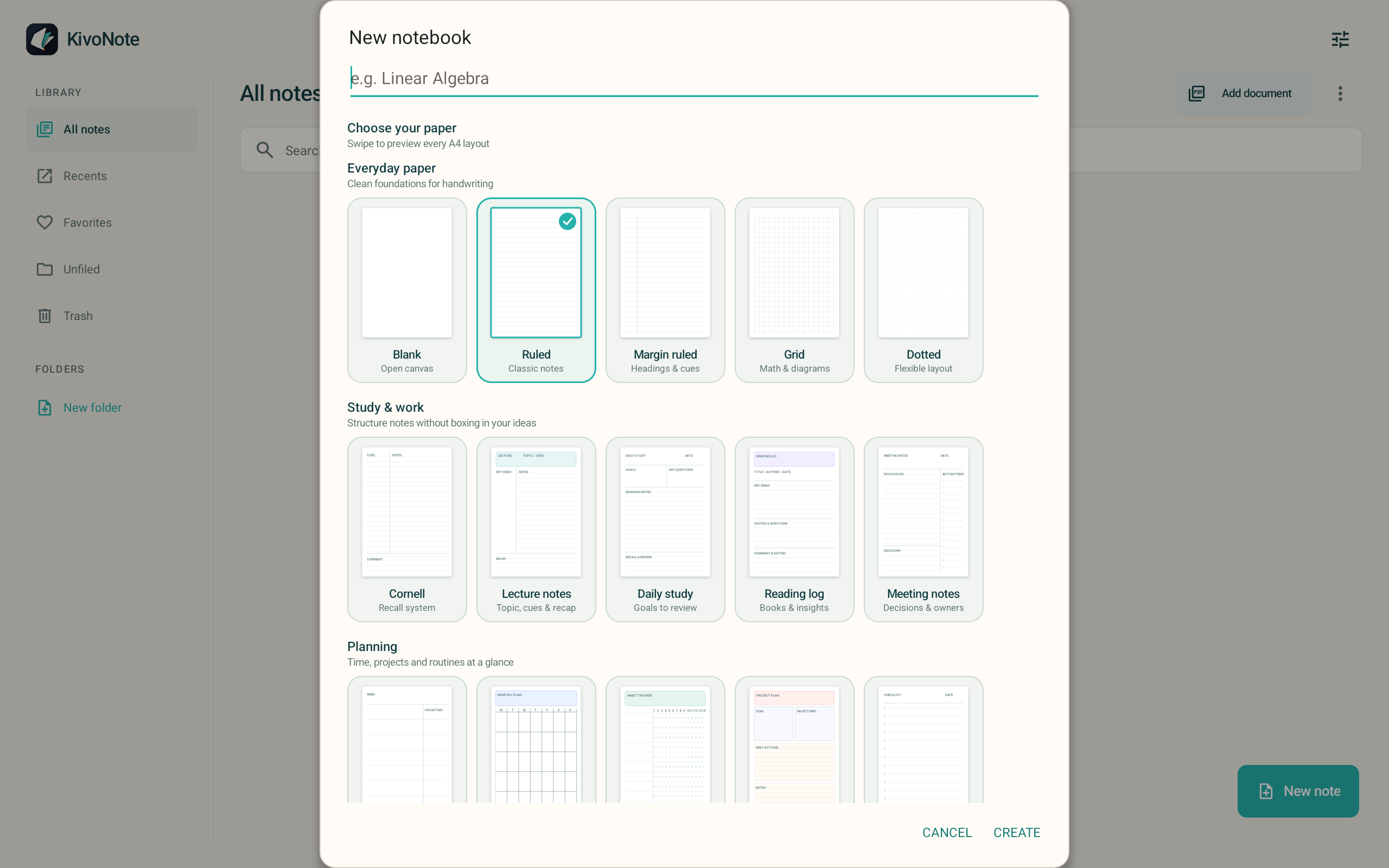
The complete KivoNote workspace

Everything you need to think on the page.

Precision ink, editable PDF tools, two-document study and local organization, designed for Android tablets and S Pen.

01

Ink and S Pen

Handwriting shaped around Android.

Write with the stylus while your finger scrolls and zooms. Hold the S Pen side button to erase, then release it to return to your previous tool.

Black stylus making a precise teal ink stroke on a tablet

Five primary pen families

Ballpoint, fountain, pencil, brush and marker keep the main Ink Studio focused. Existing compatible highlighter and calligraphy strokes remain readable.

Pressure and tilt

Stroke width, opacity and character can respond to how the stylus meets the screen.

Fountain control

Adjust nib angle and stabilization for cleaner flat-nib and calligraphic writing.

Deterministic width

Choose from twelve width steps, then keep favorite color and pen combinations in three persistent presets.

Custom color

Use the compact palette for quick choices or select a precise custom color for the page.

Palm rejection and hover

Stylus-only writing prevents finger marks while hover feedback helps position the pen before contact.

Ruler and smart shapes

Align marks, hold a stroke to straighten it and create clean geometric shapes without leaving the page.

Gesture editing

Scratch erase, circle select, undo and redo keep correction close to the writing action.

02

PDFs and pages

Annotate, navigate and organize every page.

Read and mark up PDFs in a continuous workspace, then use focused page tools without leaving the document.

Tablet prepared for a PDF reading and annotation session

Gapless vertical flow

Pages meet edge to edge so scrolling does not feel like jumping between separate cards.

Document-wide zoom

Pinch from 0.42× to 4× and the whole continuous document scales together.

Editable annotation layer

Ink, text, clips and images remain individually editable above the original page.

Dedicated Pages view

Open the right-side preview panel directly, filter All, Bookmarks or Notes, and tap a portrait preview to navigate.

Local search and bookmarks

Search PDF text, OCR content and annotations, then jump to a matching page or saved bookmark.

Complete page control

Add, duplicate, move, rename, rotate, crop, label or delete pages from contextual page actions.

PDF and PNG export

Export a page as PNG or a complete notebook as PDF. Untouched imported PDFs use a source-preserving fast path.

Resume exactly

Return to the page, zoom level and reading position where you left the notebook.

Qualification note: PDF rendering, edited export and resume behavior are still being validated on representative Samsung hardware before public release.

03

Text, selection and media

Edit content where it lives.

Tap the page to type, select handwriting or place an image. Each object stays editable on the page instead of being flattened into the background.

Tap anywhere

Type directly at the chosen page position. Empty editors disappear cleanly when you finish.

Direct manipulation

Move, resize from four corners, rotate or delete selected text and media.

Freeform clipping

Draw around an irregular region, place the clip elsewhere and retain a link back to its source page.

Rich text

Change font, size, color, alignment, bold, italic and underline after writing.

Lists and checklists

Create structured notes with bullets, numbered lists and tappable checklist items.

Spelling suggestions

Use Android writing suggestions while editing typed content.

Rectangle and freeform lasso

Select ink or page content with the shape that fits the material.

Image editing

Insert, crop, flip, lock, caption and change corner treatment without leaving the notebook.

Layer order

Bring an object forward or send it back when page elements overlap.

Cross-page transfer

Copy selected content to another page while preserving editable source data.

Return to source

Use a stable source link on a clipping to jump back to the original context.

Durable study objects

Sticky Notes, Code Blocks, offline LaTeX and Web Clip previews remain editable through save, copy, undo and archive restore.

Object security

Lock media against accidental movement while retaining later unlock, crop, caption, layer and transform controls.

04

Split workspace

Two complete documents at the same time.

Open the same notebook twice or pair two different notebooks. Each pane behaves as an independent continuous document.

Android tablet presenting two study documents side by side

Independent navigation

Separate page, scroll and zoom state for left and right panes.

Symmetric controls

Matching titles, close actions and navigation on both sides.

Active-pane previews

Page previews and page actions target the pane you are currently using.

Quick switching

Change the notebook in either pane without rebuilding the complete study layout.

06

Paper and appearance

A workspace that fits the subject.

Choose the right page structure, then adapt the surrounding interface to the device and your preference.

Blank
Ruled
Grid
Dotted
Cornell
Planner

Study templates

Use Cornell, isometric, music, weekly planner, meeting, daily study, checklist, storyboard and engineering layouts.

Custom surfaces

Adjust page background, paper color and notebook cover without flattening your annotations.

Four interface themes

Choose System, Light, Dark or AMOLED for the surrounding workspace.

Vivid accents

Set a personal accent while controls maintain consistent contrast and state.

Toolbar control

Hide and reorder tools so the editor reflects your actual workflow.

Five interface languages

Use English, German, Turkish, Spanish or French, or follow the Android system language.

07

Focus and productivity

Useful study controls, kept in the right place.

Hide surrounding chrome when you need concentration, or bring in purpose-built tools for practice and presentation.

Focus Mode

Clear panels and secondary controls from the page when concentration matters.

Study Tape

Cover part of the page to practice recall without editing the source material.

Study Timer

Run a focused session with controls positioned above Android system insets.

Presentation Mode

Present the document with a cleaner reading surface and direct navigation.

Page-oriented Find

See bounded snippets, source labels and the exact page for each PDF, OCR, typed-text, caption or transcript match.

Hardware shortcuts

Use available keyboard and stylus actions without moving back through menus.

Fast notebook switching

Move between notebooks from the editor and split workspace.

Bookmarks

Mark important pages and filter the Pages view to reach them directly.

08

Audio notes

Keep the explanation beside the page.

Record a lecture or spoken thought while you continue reading and writing. Audio remains notebook data rather than a separate cloud service.

Student writing on an Android tablet during a focused study session

App-private recording

Capture AAC audio only after an explicit microphone action. KivoNote never asks for microphone permission at startup.

Playback on the page

Keep transport controls close to the active notebook while handwriting and scrolling remain available.

Editable transcript

Correct, extend or write a transcript manually and keep timed segments linked to the recording.

On-device recognition

Compatible Android 13+ devices can use an explicitly offline recognizer. Unsupported languages retain recording and manual editing without a network fallback.

Durable notebook data

Recording bytes, duration, transcript state and edits survive save, reopen, page copy and verified .kivonote archive restore.

Managed cleanup

Shared recording assets remain safe when a page is duplicated and are removed only after no notebook object references them.

Device note: Offline transcription availability depends on the Android device and installed offline language model. KivoNote does not silently send speech to an online recognizer.

09

Local reliability and access

Your work remains useful without a KivoNote account.

The first release keeps the core notebook local, saves page changes incrementally and avoids adding network services before they are ready.

KivoNote does not upload your note content in the offline release.

Read the Privacy Policy

Per-page local storage

SQLite page records save only the pages that changed, keeping edits efficient and recoverable.

Dirty-page autosave

Pause and Back operations persist the pages and metadata that actually changed.

Rotating recovery states

Five local recovery points support restoration after an editing problem.

App-private assets

Imported content and editable objects remain in the Android app's private storage unless you export them.

No ad or analytics SDK

The offline build does not require a KivoNote advertising identifier or analytics account.

Accessible actions

Core controls use labelled actions, tooltips and minimum 48 dp touch targets.

Motion preference

Short transitions respect Android's disabled-animation setting and do not block stylus input.

No AI or cloud dependency

Audio and transcripts stay local. Generative AI and cloud collaboration are deliberately outside the first public release.

Workspace resurrection

Primary and secondary notebook, page, scroll, zoom and active-pane state are recorded for recovery after Android reclaims the process.

Memory-aware rendering

Visible pages outrank thumbnails, oversized scans are bounded and speculative work is cancelled under Android memory pressure.

KivoNote for Android

One focused workspace for reading, writing and study.

See release statusOpen testing support